> ## Documentation Index
> Fetch the complete documentation index at: https://dacruzdev.mintlify.site/llms.txt
> Use this file to discover all available pages before exploring further.
# Record MP4 and WebM Video in ScreenshotKit
> Record H.264 MP4 or VP8 WebM video from a live camera, the viewport, or a deterministic turntable, with Gameplay or Smooth pacing, quality presets, supersampling, and audio.
Use the **Record** tab when you want an encoded video file: gameplay clips, trailers, store page videos, or clean product turntables.
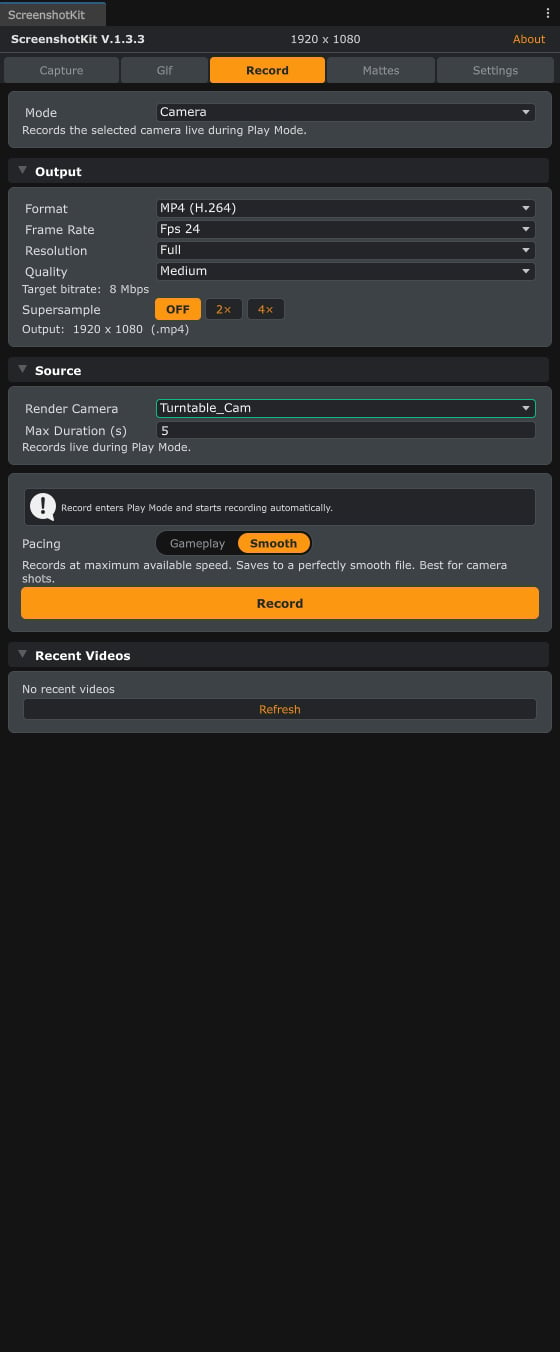 ## Pick a mode
| Mode | What it records |
| ------------- | ------------------------------------------------------------------------------------------------------------------------------------------------ |
| **Camera** | A scene camera, live, while you play. |
| **Viewport** | The editor viewport, live, as you see it. |
| **Turntable** | A deterministic orbit of the camera around a target, or a spin of the target object, rendered frame by frame in Edit Mode (no Play Mode needed). |
## Pick a mode
| Mode | What it records |
| ------------- | ------------------------------------------------------------------------------------------------------------------------------------------------ |
| **Camera** | A scene camera, live, while you play. |
| **Viewport** | The editor viewport, live, as you see it. |
| **Turntable** | A deterministic orbit of the camera around a target, or a spin of the target object, rendered frame by frame in Edit Mode (no Play Mode needed). |
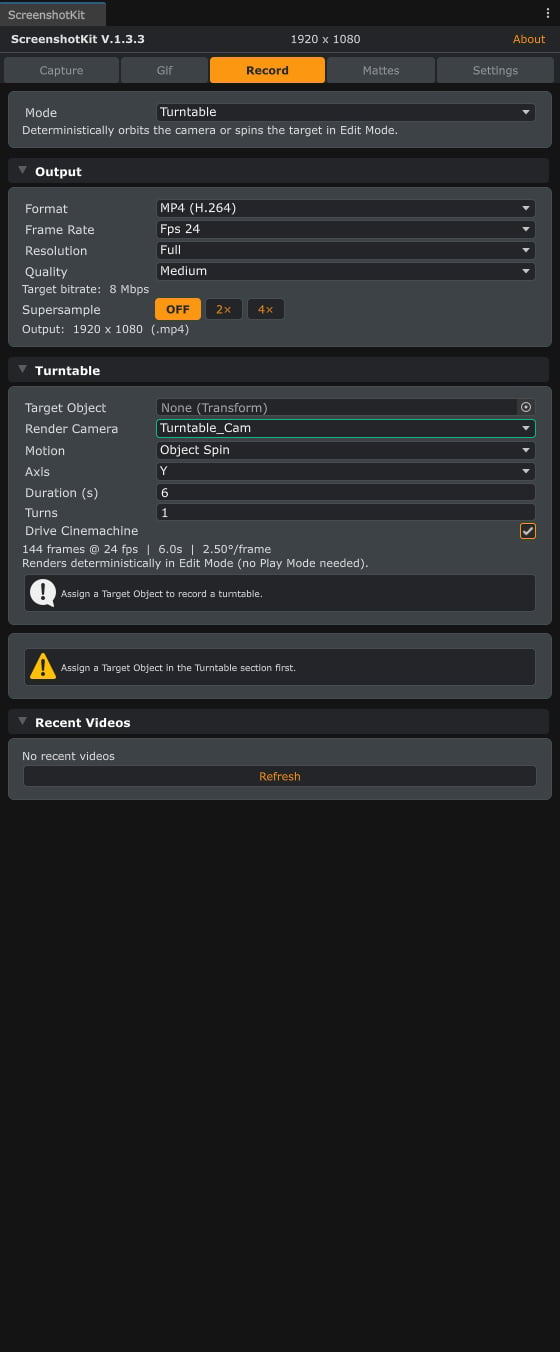 ## Steps
In the ScreenshotKit window, click the **Record** tab and pick a **Mode**.
Under **Output**, set:
* **Format**: **MP4 (H.264)** or **WebM (VP8)**. Only WebM supports an alpha channel.
* **Resolution** and **Frame Rate** (24, 30, 60, or custom; 24 fps is the default).
* **Quality**: fixed bitrate presets: **Low** 5, **Medium** 8 (the default), **High** 10, and **Ultra** 25 Mbps. **Custom** exposes an explicit 1 to 200 Mbps slider.
* **Supersample**: renders larger and downsamples, in every record mode.
* **Prefer H.264 For Live**: on by default. Live recordings without transparency automatically write MP4 (H.264) even when WebM is selected, because VP8 costs far more per frame. Turntable renders always keep the chosen format.
Under **Source**, pick the camera to record and set **Max Duration** if you want the recording to stop itself (0.5 to 600 seconds; 30 by default). In **Turntable** mode this section instead takes a **Target Object**, a **Render Camera**, and the motion settings: **Motion** (orbit the camera or spin the target), **Axis**, **Duration** (0.1 to 600 seconds), **Turns**, and **Drive Cinemachine** for rigs driven by a Cinemachine camera. A readout shows frames, fps, and degrees per frame.
For live modes, the **Pacing** switch above the Record button decides how recording treats the game clock:
* **Gameplay** (the default) records in real time. The game runs at true speed with natural input; if the machine lags, the previous frame is briefly held in the file, so the clip's duration always matches real time. While recording, the game's frame rate is capped to the recording frame rate and restored on stop.
* **Smooth** locks the engine clock to the frame rate for a perfectly even file, best for camera shots and cinematics. Game speed bends with rendering performance, so a fast machine plays the game faster while recording.
Turntable renders are deterministic and ignore the switch.
For live modes, click **Record**: outside Play Mode the button enters Play Mode and starts the recording automatically. Click **Stop and Save** when done, or let **Max Duration** stop it for you. For turntables, click **Record Turntable**: the clip renders deterministically in Edit Mode with a frame counter.
## Result
An `.mp4` or `.webm` file in your configured video output folder, listed under **Recent Videos** at the bottom of the tab. Tick **Save Outside Assets** under **Settings > Recording** to keep videos out of your project's import pipeline.
To include game audio in live recordings, enable **Include Audio** under **Settings > Recording**.
Video capture never stalls the frame. Frames are read back asynchronously (no `ReadPixels` pipeline stall) and encoded on worker threads. If the GPU falls behind, at most four readbacks stay in flight and further capture slots are skipped, so a heavy scene records with dropped frames instead of collapsing the frame rate. The recorder logs a warning and reports the drop count.
WebM (VP8) encoding is slow for live recording. Leave **Prefer H.264 For Live** on unless you need VP8 specifically; use WebM for turntable renders or transparent video.
## See also
* [GIF Recording](/workflows/gif-recording) for lightweight looping clips.
* [Image Sequence](/workflows/image-sequence) for frame-perfect stills you encode yourself.
## Steps
In the ScreenshotKit window, click the **Record** tab and pick a **Mode**.
Under **Output**, set:
* **Format**: **MP4 (H.264)** or **WebM (VP8)**. Only WebM supports an alpha channel.
* **Resolution** and **Frame Rate** (24, 30, 60, or custom; 24 fps is the default).
* **Quality**: fixed bitrate presets: **Low** 5, **Medium** 8 (the default), **High** 10, and **Ultra** 25 Mbps. **Custom** exposes an explicit 1 to 200 Mbps slider.
* **Supersample**: renders larger and downsamples, in every record mode.
* **Prefer H.264 For Live**: on by default. Live recordings without transparency automatically write MP4 (H.264) even when WebM is selected, because VP8 costs far more per frame. Turntable renders always keep the chosen format.
Under **Source**, pick the camera to record and set **Max Duration** if you want the recording to stop itself (0.5 to 600 seconds; 30 by default). In **Turntable** mode this section instead takes a **Target Object**, a **Render Camera**, and the motion settings: **Motion** (orbit the camera or spin the target), **Axis**, **Duration** (0.1 to 600 seconds), **Turns**, and **Drive Cinemachine** for rigs driven by a Cinemachine camera. A readout shows frames, fps, and degrees per frame.
For live modes, the **Pacing** switch above the Record button decides how recording treats the game clock:
* **Gameplay** (the default) records in real time. The game runs at true speed with natural input; if the machine lags, the previous frame is briefly held in the file, so the clip's duration always matches real time. While recording, the game's frame rate is capped to the recording frame rate and restored on stop.
* **Smooth** locks the engine clock to the frame rate for a perfectly even file, best for camera shots and cinematics. Game speed bends with rendering performance, so a fast machine plays the game faster while recording.
Turntable renders are deterministic and ignore the switch.
For live modes, click **Record**: outside Play Mode the button enters Play Mode and starts the recording automatically. Click **Stop and Save** when done, or let **Max Duration** stop it for you. For turntables, click **Record Turntable**: the clip renders deterministically in Edit Mode with a frame counter.
## Result
An `.mp4` or `.webm` file in your configured video output folder, listed under **Recent Videos** at the bottom of the tab. Tick **Save Outside Assets** under **Settings > Recording** to keep videos out of your project's import pipeline.
To include game audio in live recordings, enable **Include Audio** under **Settings > Recording**.
Video capture never stalls the frame. Frames are read back asynchronously (no `ReadPixels` pipeline stall) and encoded on worker threads. If the GPU falls behind, at most four readbacks stay in flight and further capture slots are skipped, so a heavy scene records with dropped frames instead of collapsing the frame rate. The recorder logs a warning and reports the drop count.
WebM (VP8) encoding is slow for live recording. Leave **Prefer H.264 For Live** on unless you need VP8 specifically; use WebM for turntable renders or transparent video.
## See also
* [GIF Recording](/workflows/gif-recording) for lightweight looping clips.
* [Image Sequence](/workflows/image-sequence) for frame-perfect stills you encode yourself.