> ## Documentation Index
> Fetch the complete documentation index at: https://dacruzdev.mintlify.site/llms.txt
> Use this file to discover all available pages before exploring further.
# Record a Frame-by-Frame Image Sequence in ScreenshotKit
> Capture a numbered image sequence from Play Mode in PNG, JPEG, TGA, or EXR, with optional per-frame transparency and AOV matte passes.
Use this when you want frame-by-frame stills for video editing, frame-perfect compositing, or per-frame mattes.
 ## Steps
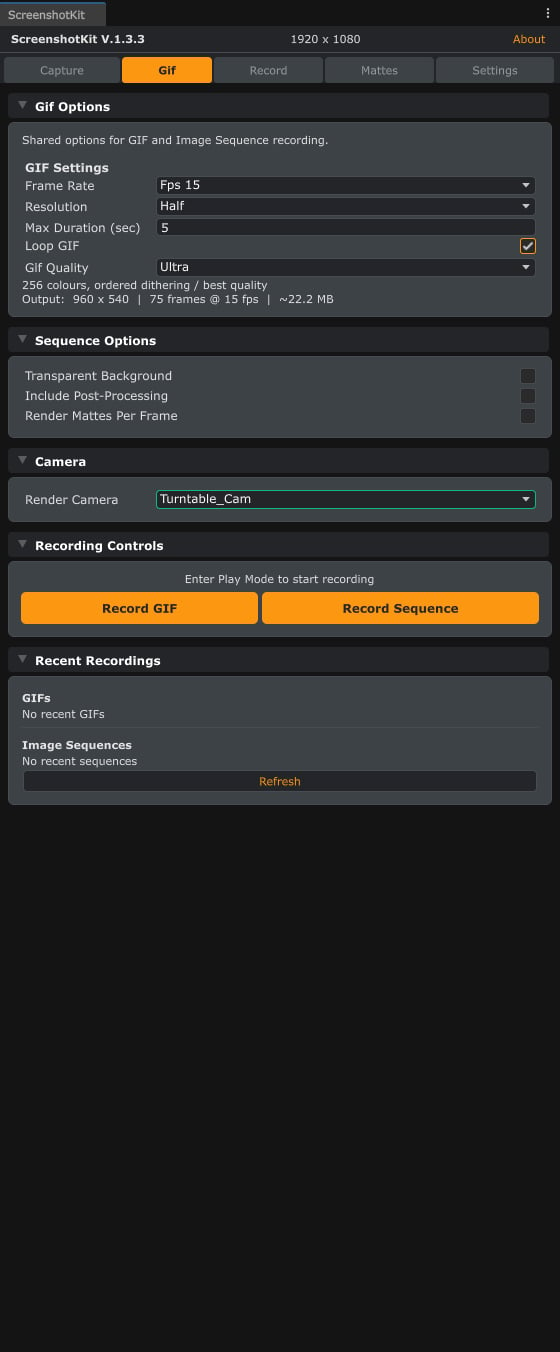
Open the **Gif** tab and expand **Sequence Options**.
Set **Frame Rate**, **Resolution**, **Max Duration**, and a **File Prefix**.
Choose **PNG**, **JPEG**, **TGA**, or **EXR**. JPEG exposes a quality slider; EXR enables HDR float output.
Optionally tick **Transparent Background** for per-frame alpha, and/or **Render Mattes Per Frame** for per-frame Cryptomatte / AOV passes.
Enter Play Mode and click **Start Recording**, then **Stop Recording** when done.
## Result
A folder of `frame_000000.ext`, `frame_000001.ext`, and so on, plus one subfolder per enabled matte pass (for example `ObjectID/`, `Normals/`, `MotionVectors/`) when per-frame mattes are on.
EXR sequences with **32-bit Float** output preserve full HDR. Use **ZIP** or **RLE** compression under **Settings > File Format** to control file size.
The recorder warns before overwriting if the output folder already contains frames. Pick a new folder per take if you do not want previous frames overwritten.
Per-frame matte rendering is heavy. If performance matters, capture without mattes and re-render mattes for the frames you actually need.
## See also
* [Runtime API: SequenceRecorder](/api/sequence-recorder) to drive sequences from your own scripts.
* [Video Recording](/workflows/video-recording) when you want an encoded video file instead of stills.
## Steps
Open the **Gif** tab and expand **Sequence Options**.
Set **Frame Rate**, **Resolution**, **Max Duration**, and a **File Prefix**.
Choose **PNG**, **JPEG**, **TGA**, or **EXR**. JPEG exposes a quality slider; EXR enables HDR float output.
Optionally tick **Transparent Background** for per-frame alpha, and/or **Render Mattes Per Frame** for per-frame Cryptomatte / AOV passes.
Enter Play Mode and click **Start Recording**, then **Stop Recording** when done.
## Result
A folder of `frame_000000.ext`, `frame_000001.ext`, and so on, plus one subfolder per enabled matte pass (for example `ObjectID/`, `Normals/`, `MotionVectors/`) when per-frame mattes are on.
EXR sequences with **32-bit Float** output preserve full HDR. Use **ZIP** or **RLE** compression under **Settings > File Format** to control file size.
The recorder warns before overwriting if the output folder already contains frames. Pick a new folder per take if you do not want previous frames overwritten.
Per-frame matte rendering is heavy. If performance matters, capture without mattes and re-render mattes for the frames you actually need.
## See also
* [Runtime API: SequenceRecorder](/api/sequence-recorder) to drive sequences from your own scripts.
* [Video Recording](/workflows/video-recording) when you want an encoded video file instead of stills.